Clark Street On Call
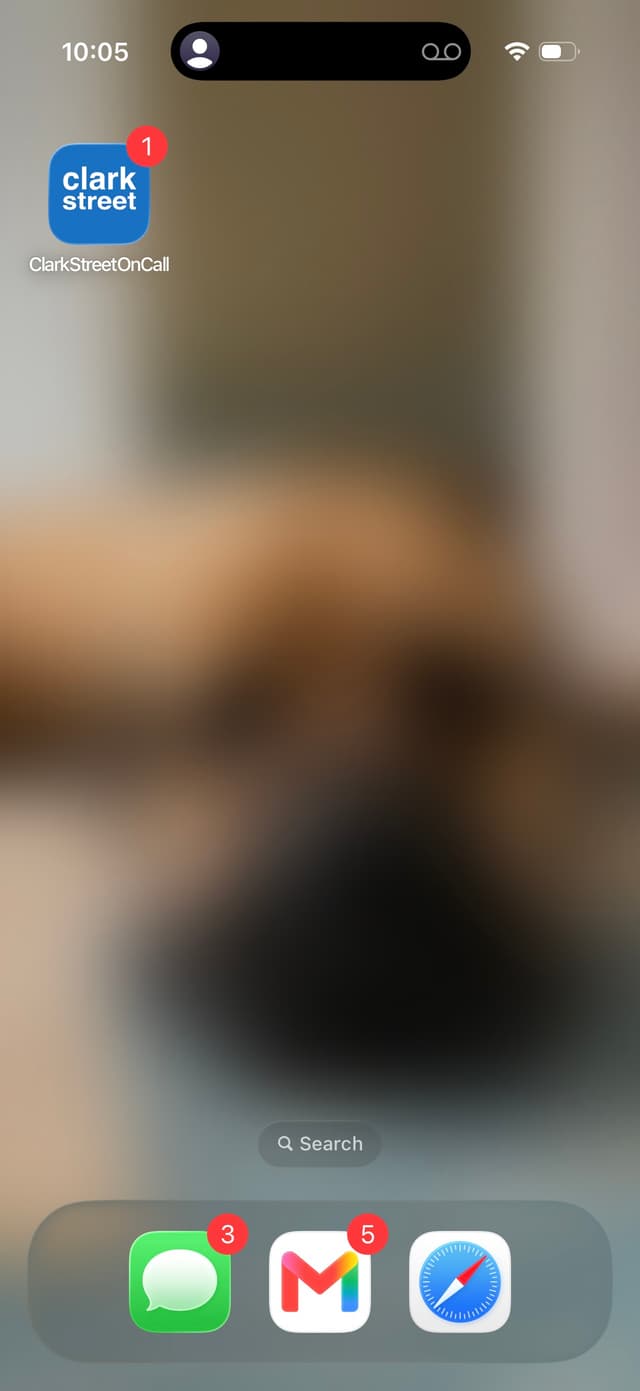
Clark Street On Call is the iPhone app for on-call providers. When a patient leaves an urgent message with your after-hours agent, the app alerts you immediately, gives you the full context of the call, and lets you call the patient back from your practice's number — all without exposing your personal cell.
Getting the app
- Download Clark Street On Call from the App Store. Anyone with a practice account can use the app.
- Open the app and tap Sign in, then use the same email you use for the practice dashboard.
- Allow notifications when prompted. This is what lets urgent call alerts reach you while you're on call.
How calls come in
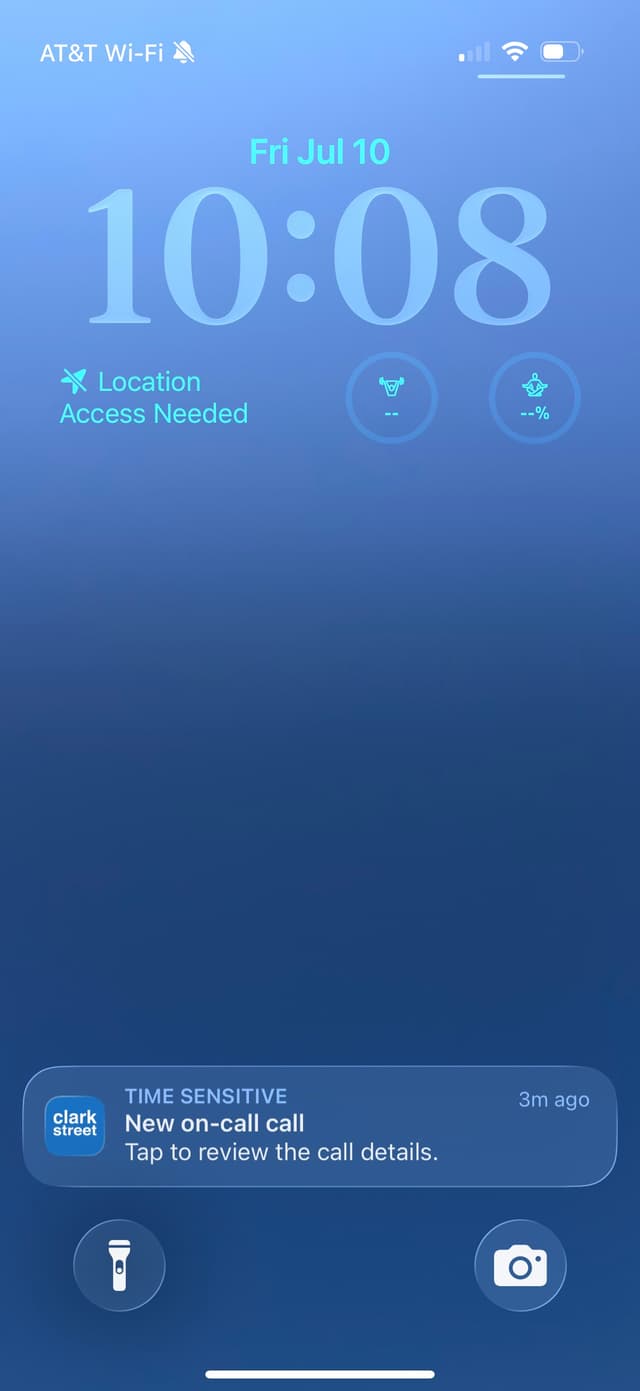
When the agent takes an urgent call for your practice, everyone on call receives a push notification within seconds of the call ending. Alerts are delivered as Time Sensitive notifications, so they break through silent mode and most Focus settings — no Do Not Disturb configuration required. Notifications never contain patient information; details stay in the app behind your sign-in.
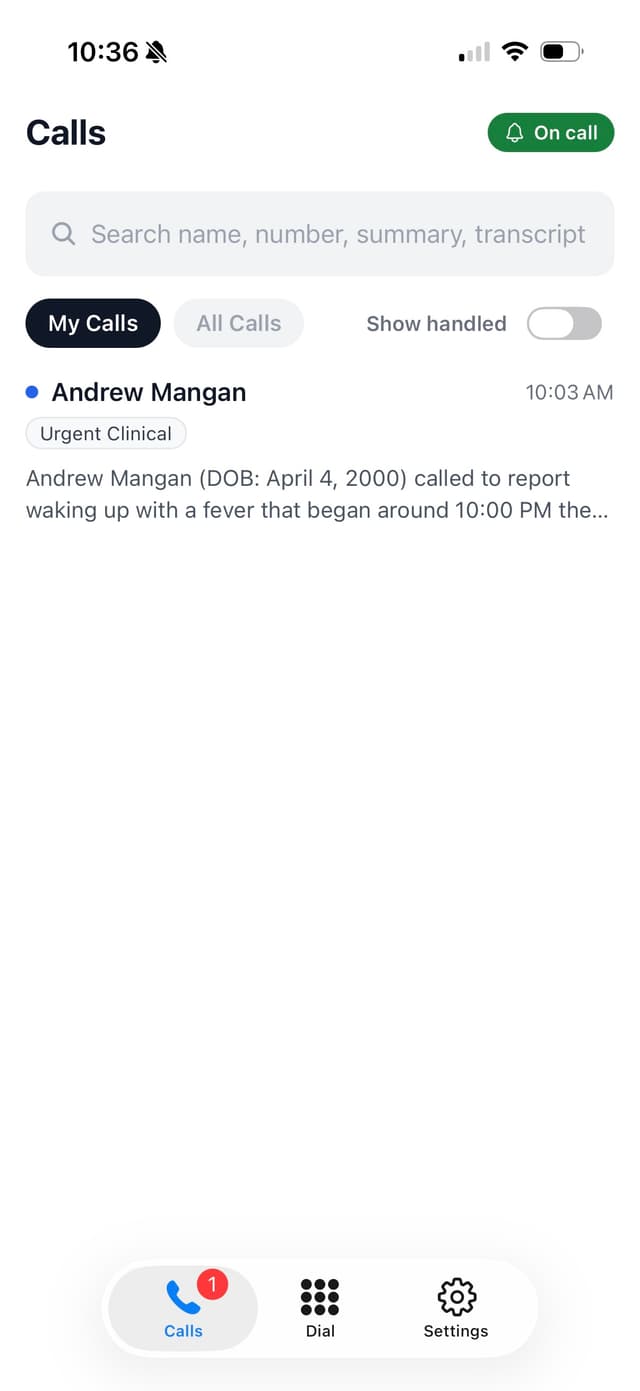
Tap the notification to open the call, or open the app to see the full list. My Calls shows calls routed to you; All Calls shows everything for the practice. You can search by name, number, summary, or transcript, and flip on Acknowledged to include calls a provider has already acknowledged.
Reviewing a call
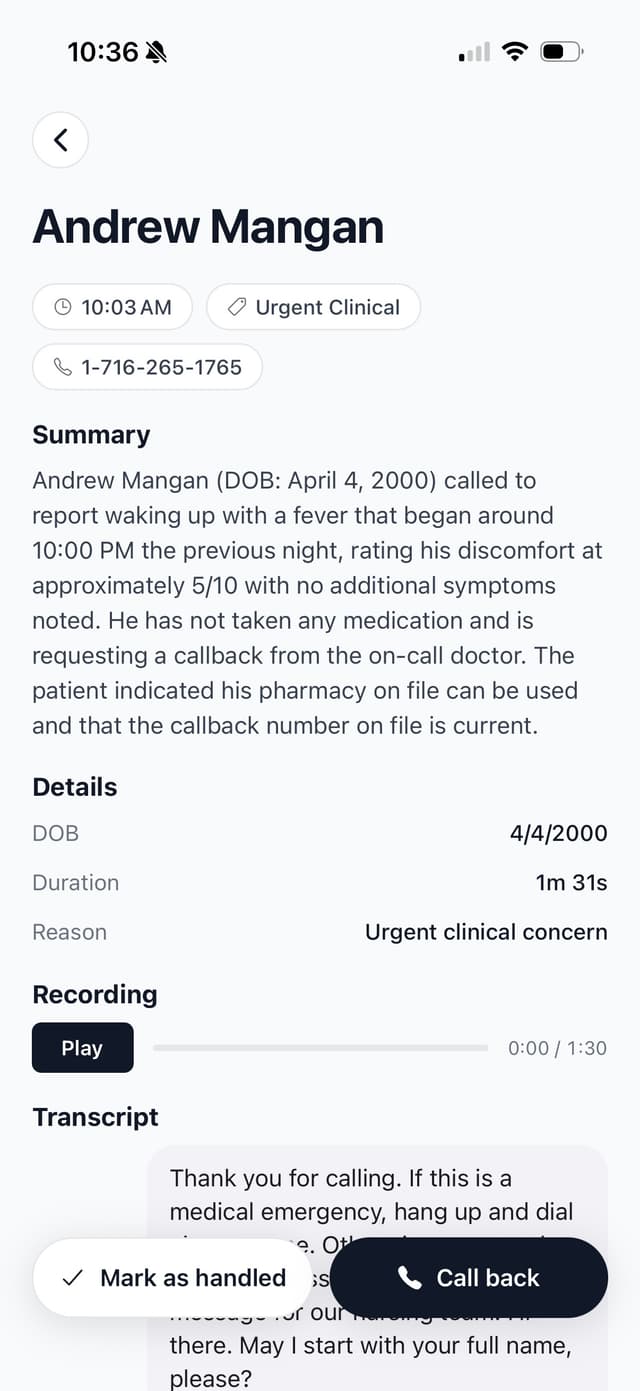
Each call opens with everything you need before you pick up the phone: the patient's name, callback number, date of birth, the reason for the call, a written summary, the full recording, and a complete transcript. When you're done with a call, tap Acknowledge so the rest of the team knows you've taken care of it — acknowledgment is shared across the practice and is separate from ticket or EHR completion.
Calling patients back
Tap Call back on any call and choose the number the patient sees:
- Your practice number — the call is placed through your practice line, so the patient sees the number they already know and your personal cell stays private. This is the default.
- Your number — the app hands off to the iPhone dialer and the call goes out on your own line.
The Dial tab works the same way for new outbound calls: enter any number, pick your caller ID, and call. Callbacks are logged on the call's activity timeline, so the team can see who called back and when.
Notification settings
Urgent call alerts can be turned on or off per device under Settings → Urgent call alerts in the app. If alerts are off at the iOS level, the app will point you to system settings to re-enable them. Email and SMS notifications configured for your practice continue to work independently of the app — see Clinical Call Alerts.
Questions?
If you can't sign in or alerts aren't arriving, email support@clarkstreethealth.com and we'll get you sorted. The App Store listing is here.